General Content Management
CMS (Strapi CMS) Account
To manage content within Bloomington and other catalog sites, we will be using a custom CMS. If you do not have an account, please reach out to the web development department to have one created.
Content Manager
When logged in you will see a tab on the left side called “Content Manager”, please select this to see the collection types available for you to edit and create.
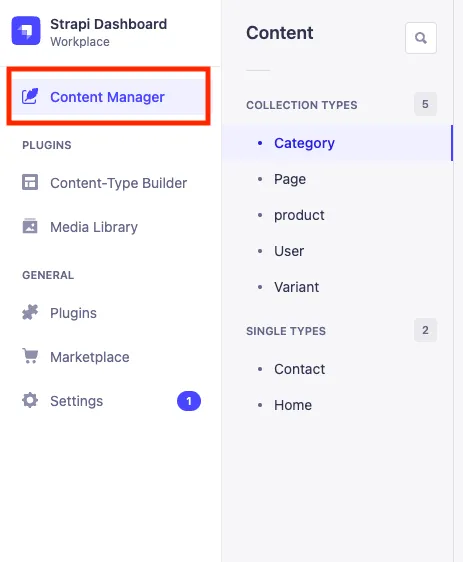
Collection Types
We have basic collection types created for you to use. Collection types can be used to create multiple entries of the same type like products. If you would like additional collection types, please reach out to the web development department. To add a new entry to each collection, select the “Create new entry” button in the upper right of the screen.
Below you will find a description for each collection type and how to update it.
Category
The category collection type holds the following data:
| Field Name | Expected Value |
|---|---|
| name | text |
| image | image upload |
| description | text or HTML |
| products | product type |
Fields with a red asterisk are required. The URL for the category will be auto-generated in the code from the category name field. Something like foam will become a url of bloomington.com/foam. Once you have added your desired inputs, push the save button in the upper right corner.
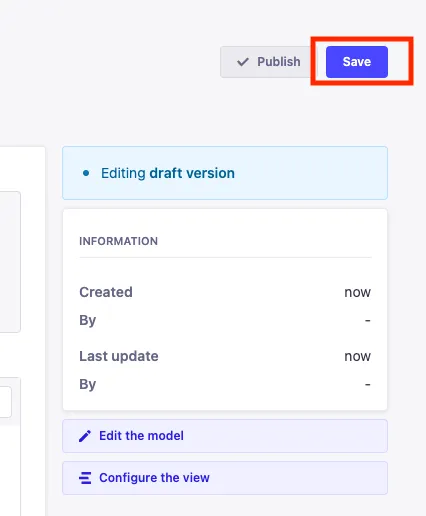
Once you save, the collection entry will be available as a draft. To see the content on the website you will need to select “Publish” next to the save button. To add products to the category, the products must first be created in the product collection. To see products currently available, select the product dropdown.
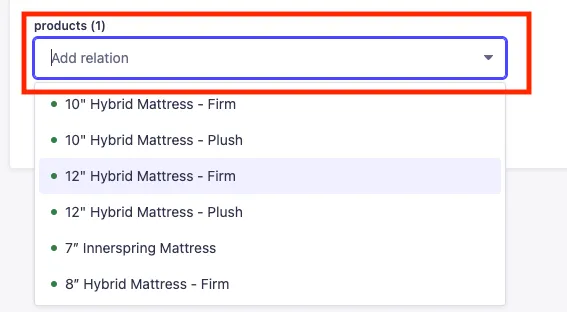
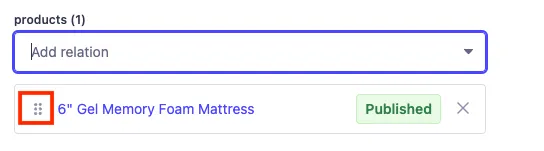
To move products in a different display order, simply click on the six column dots on the left of the product entry.
Page
The page collection is where generic pages like terms and conditions are added. We have pages for privacy policies and warranty. The URL for the page will be auto-generated in the code from the page name field. Something like California Privacy will become a url of bloomington.com/california-privacy. Once saved and published, a link to the page will be auto-generated in the site footer.
The page collection type holds the following data:
| Field Name | Expected Value |
|---|---|
| name | text |
| meta_title | text |
| meta_description | text |
| content | HTML |
Product
The product collection is where all products are all parent skus input. The URL for the proudct will be auto-generated in the code from the product name field. Something like 8" Gel Memory Foam will become a url of bloomington.com/8-gel-memory-foam. The product collection type holds the following data:
| Field Name | Expected Value |
|---|---|
| name | text |
| sku | text |
| product_id | text |
| default_msrp | number |
| brand | text |
| default_size | item from provided dropdown |
| subheading | text |
| image | default image |
| description | HTML |
| variants | variant type |
| gallery | multiple images w/ captions |
Once saved and published, you can navigate to the category and attach the desired products. A product will not show otherwise, since it needs to be attached to a visible (published) category.
Variant
For products that have variants, you will want to create an entry for each variant within the variant collection. A variant can be assigned to a single product. The variant collection type holds the following data:
| Field Name | Expected Value |
|---|---|
| size | item from provided dropdown |
| sku | text |
| image | default image |
| color | item from provided dropdown |
| msrp | number |
| product | product type |
Single Types
Single types can only be used once. For our sites we use them for contact information and landing pages, like the home page.
Contact
The contact type has a single input for email. We currently do not have the phone number available for the site. The contact email is used in the footer and product pages.
Home
The home page is a basic landing page composed of the hero and info components. The home page uses the following data:
Hero
| Field Name | Expected Value |
|---|---|
| heading | text/HTML |
| subheading | text |
| button_text | text |
| button_link | link url (relative or direct path) |
| image | hero image |
Info
| Field Name | Expected Value |
|---|---|
| heading | text |
| description | text |
| content | HTML |
Images
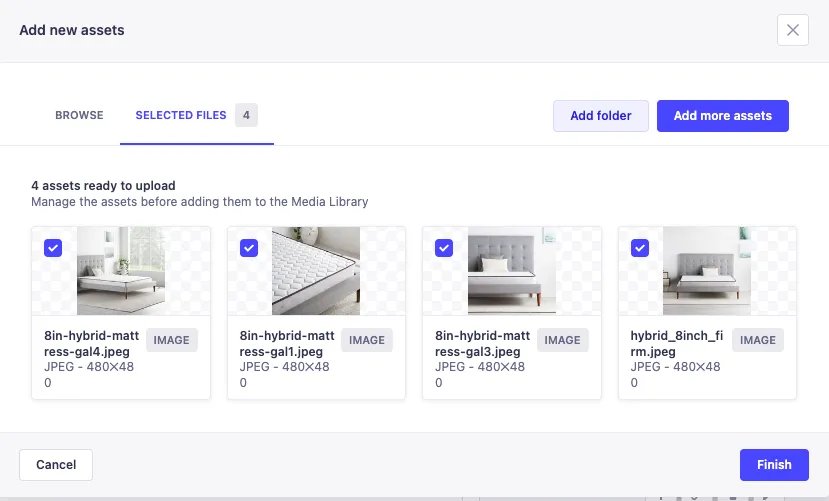
We are using a CDN to store images. You can upload them through Strapi and we do the rest. Images can be upload through the entries listed above, or you can do a mass asset upload through the “Media Library” tab in the left menu.
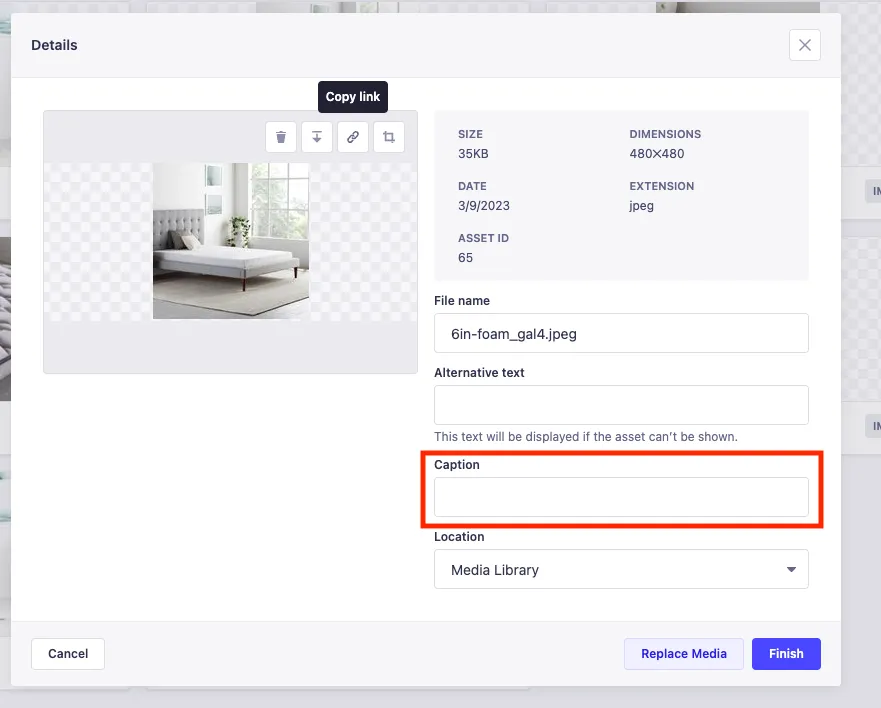
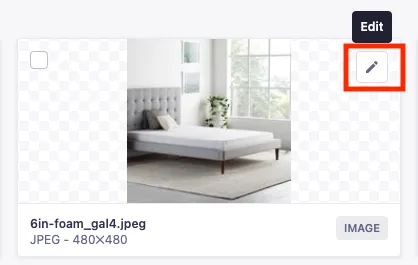
If you would like to edit an image, click the pencil/pen icon to edit alt text or captions.
Gallery
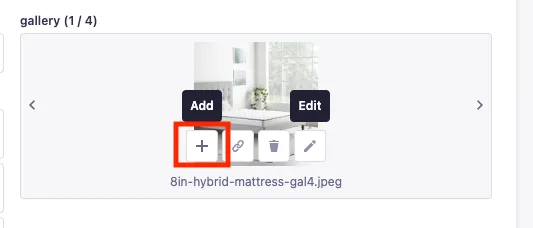
With the gallery input, you can upload multiple images and change display order by clicking the ”+” icon and dragging/dropping the images into your desired order.
The product gallery uses image captions for the text under each image. These can be added or left blank.