Custom Fields
We use custom fields to modify, group, or simply display additional information on a product. If you are new to custom fields, please refer to the BigCommerce documentation.
The documentation on this page will address specific custom fields we’ve created, and what they’re being used for on Malouf VIP.
Here is a complete list of all available Custom Fields, expected values, and a brief description for each. You can learn more by reading below or by following the link in the table.
| Custom Field Name*: | Custom Field Value(s): | Description |
|---|---|---|
best-seller-badge | text | badge |
new-badge | text | badge |
selling-fast-badge | text | badge |
employee-fav-badge | text | badge |
deal-of-day-badge | text | badge |
deal-end-date | date | year-monthy-day timer |
free-shipping-badge | text | badge |
cta-message | text | Product page message |
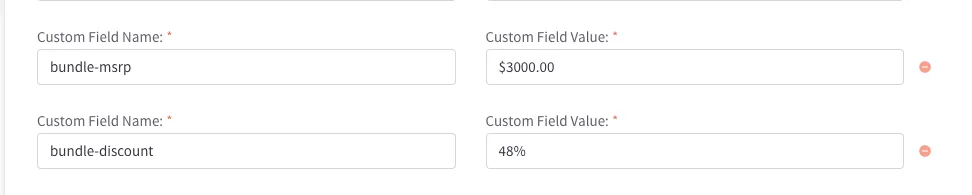
bundle-msrp | text/price | Bundle price for items in KitBuilter, shows on product page |
bundle-discount | text (i.e. 67% OFF!) | Shows percent off of bundle items |
Badges
Custom Badges
For custom badges with specific text, we have created several fields to use on the product pages:
- Best sellers:
best-seller-badge - New product:
new-badge - Selling fast:
selling-fast-badge - Employee favorite:
employee-fav-badge - Deal of the day:
deal-of-day-badge - Free shipping badge:
free-shipping-badge
There is also a low stock badge that will trigger when the product has less than 10 items inventory or if the product is out of stock. These use the same theme styles, so if you would like this changed please submit a ticket.
Badge Styles
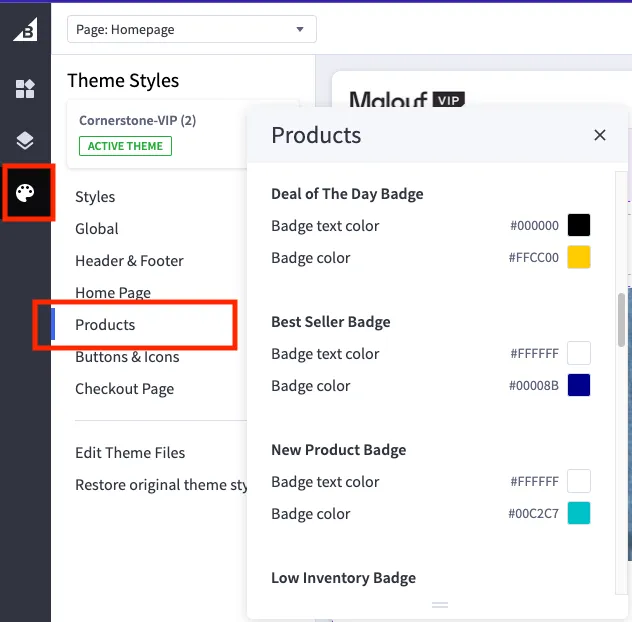
You can find the color and text adjustments for each custom badge in the content admin path: channel manager > edit theme > theme styles (paint palette icon) > products. Currently the custom fields above have to be added manually to the product.
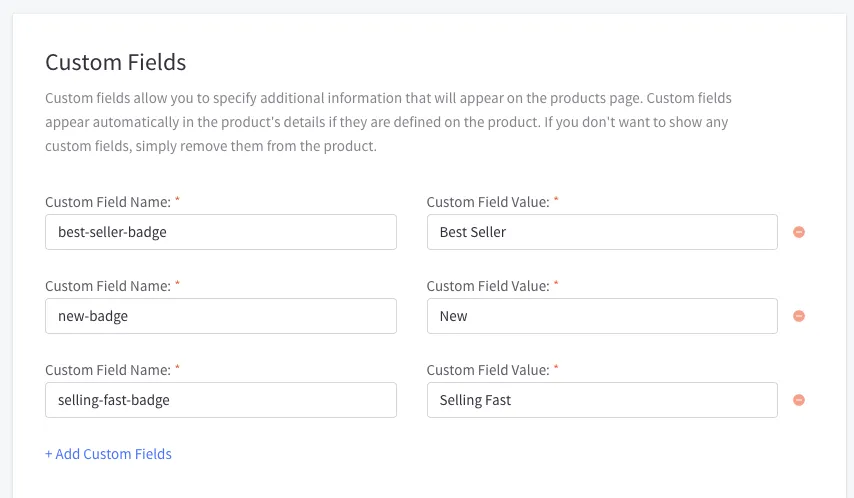
We can add additional badges if the badges above don’t fit the theme. You can also change the text of the badge through the admin. The badge input should look like this on the admin product page.
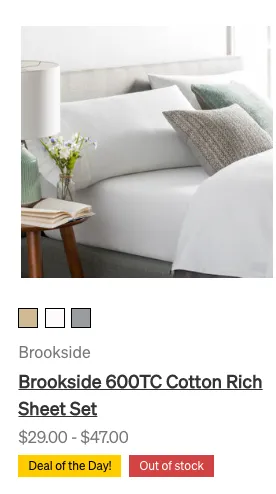
On the live site, it will display like below. It is limited to two badges for space.
Daily Deal Timer
If you want to have a timer on the daily deal, you can use the custom field below:
- Countdown Timer:
deal-end-date
Please see more about the daily deals functionality here.
CTA Message
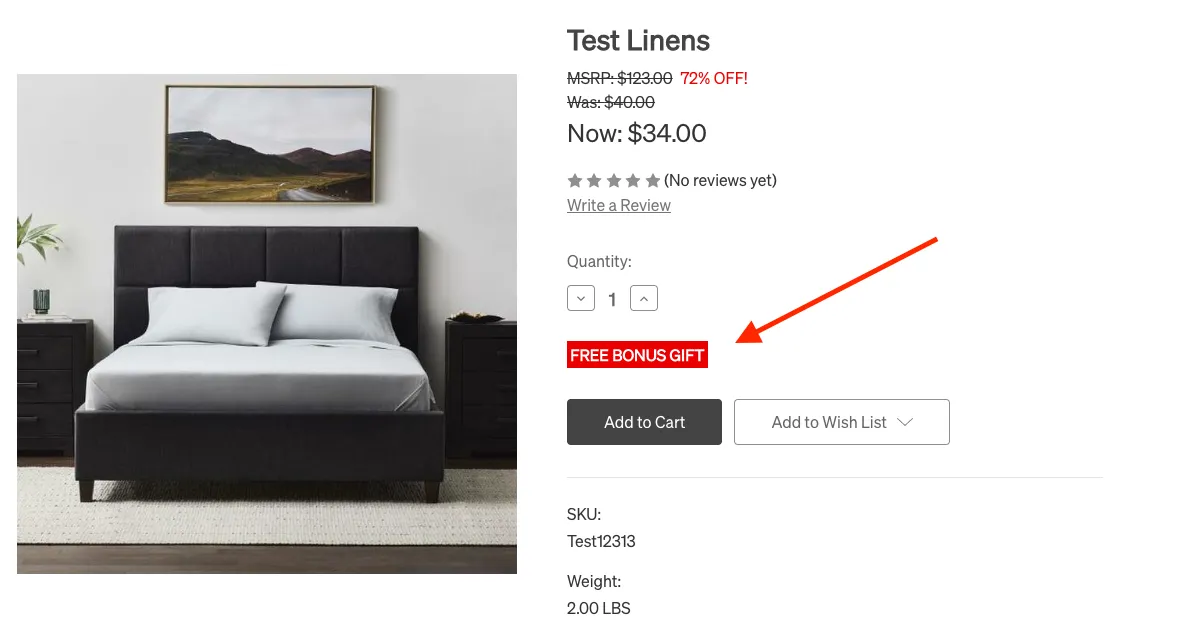
If you want to add a message near the CTA on the product page, you can use the custom field cta-message. The styles are set to be a red background with white text. If you would like to change the design, please submit a task.
The input will look like the below image in the BigCommerce admin.

When added to the product, the CTA message will appear for the customer like the image below.
Bundle Pricing
To display separate bundle prices for skus made in KitBuilder, you can use the custom fields bundle-msrp and bundle-discount to show the MSRP price and percentage off. To match the default MSRP styling, they need to be input the following format: